Gesture-Driven Animations for Mobile Interfaces
Master the art of creating responsive, intuitive animations that respond to user touch and motion — transforming how people interact with mobile apps

Why Gesture Animations Matter
Gesture-driven animations aren’t just eye candy. They’re the bridge between what users expect and what they experience. When you swipe, pinch, or drag on a screen, you’re communicating intent — and the app needs to respond with clarity and confidence.
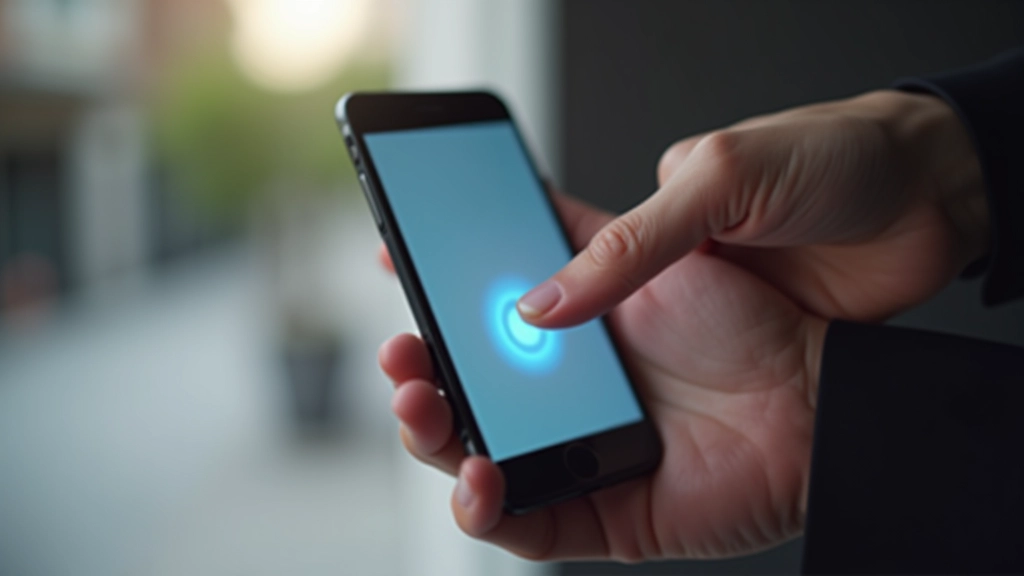
The best mobile experiences feel effortless. You’ll notice this with apps that track your finger movement in real-time, offering visual feedback that confirms your action is being registered. That’s gesture animation working as intended.
Core Principles of Gesture Recognition
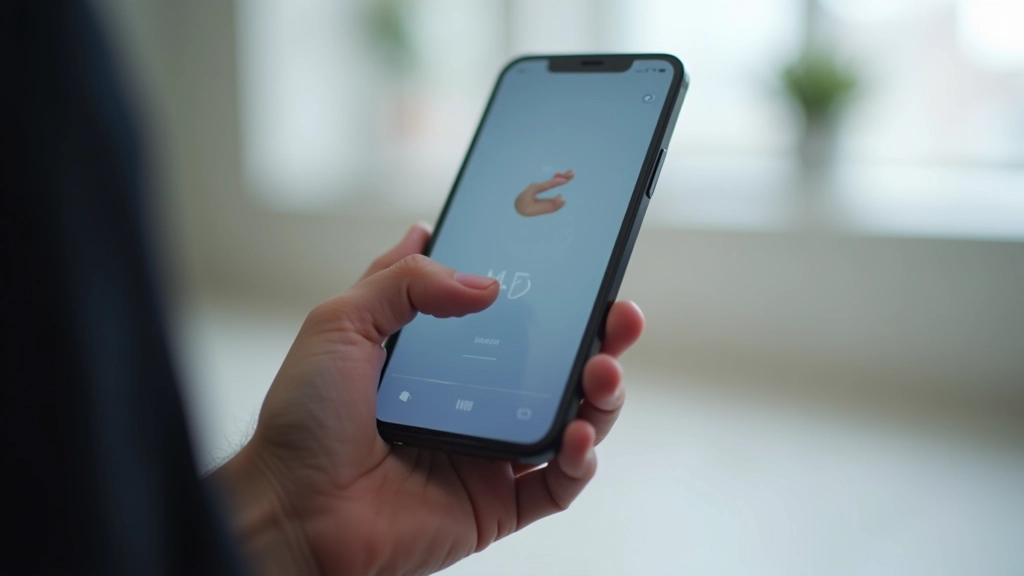
Start with the basics. Gesture detection happens in three phases: recognition, tracking, and completion. Recognition identifies what the user’s trying to do — a swipe versus a long-press requires different logic. Tracking means your animation follows the finger in real-time, updating 60 times per second (or 120 if the device supports it).
The timing matters deeply. A swipe animation that lags even 50 milliseconds behind your finger movement feels broken. You’re aiming for under 16 milliseconds of input latency — that’s 60 frames per second, the standard for smooth mobile motion.
- Swipe: Linear motion responding to velocity
- Pinch: Scale transformation with dual-touch tracking
- Long-press: Haptic feedback plus visual state change
- Rotation: Transform origin at touch center point

Implementation Strategy
Here’s where most developers get it wrong: they animate the final state instead of tracking the gesture itself. You’re not animating to a target — you’re animating *with* the user’s finger. The difference is everything.
Use pointer events, not touch events. Pointer events work across devices (mouse, touch, pen) and give you pressure data. For a swipe gesture, you’ll track `pointermove` events and calculate velocity based on distance traveled per millisecond. That velocity determines how far the content coasts after the user lifts their finger.
Momentum scrolling isn’t free — you’re implementing deceleration curves. The user’s velocity at release determines initial momentum, then you apply a deceleration function that slows the motion naturally. Most apps use a cubic easing function that decelerates smoothly over 400-600 milliseconds.
Practical Techniques You Can Use Today
Velocity-Based Flinging
Capture the user’s finger speed when they release, then calculate how far the content should travel. A fast swipe at 1000px/second travels further than a slow one at 300px/second. This makes interactions feel responsive and natural — like you’re physically throwing the content.
Spring Physics
Instead of linear easing, use spring animations that bounce slightly at the end. Tension and damping values control how springy the motion feels. A tension of 170 with damping of 26 creates a snappy, responsive feel that matches native iOS animations.
Haptic Confirmation
Pair gesture animations with haptic feedback. When a user swipes past a boundary or completes a gesture, trigger a light haptic pulse. This tactile response confirms the action registered, reducing perceived latency even if the visual animation is slightly delayed.
Boundary Dampening
When the user swipes past the edge of available content, resist the motion. Don’t let them scroll into empty space. Apply increasing resistance as they approach the boundary — the further they push, the harder it fights back. This creates a satisfying “elastic” feel.
Advanced: Multi-Touch Gestures
Pinch-to-zoom is common, but it’s deceptively complex. You’re tracking two fingers simultaneously, calculating the distance between them, then scaling based on that distance. But here’s the catch: you need to maintain the point between the two fingers as the transform origin, not the center of the screen.
Rotation gestures work similarly. Calculate the angle between two touch points, then rotate the entire element around that midpoint. Combined with scaling, you’ve created a natural pinch-and-rotate gesture that feels intuitive because it mimics real-world interaction — like physically rotating a photo with your fingers.
Performance becomes critical with multi-touch. You’re running calculations on every single frame. Use `requestAnimationFrame` to sync with the display refresh rate, and don’t perform heavy computations inside your animation loop. Pre-calculate transforms where possible, and use GPU-accelerated properties like `transform` instead of manipulating `left` and `top`.
The Takeaway
Gesture-driven animations aren’t about making things look cool — they’re about creating a conversation between the user and your interface. Every animation should respond immediately, move with purpose, and provide clear feedback about what’s happening.
Start with velocity tracking and momentum scrolling. Master those, and you’ve got the foundation for every gesture animation that matters. Add haptic feedback for confirmation, use spring physics for that native feel, and always test on real devices — the simulator doesn’t capture input latency the way an actual phone does.
The users won’t consciously notice when you get this right. They’ll just feel like the app understands them. That’s the goal.
Educational Note
This article is informational and educational in nature. Implementation approaches vary based on device capabilities, framework choices, and performance requirements. Always test gesture animations on real devices across different browsers and operating systems. Performance considerations, battery impact, and accessibility needs should guide your specific implementation decisions. Consult official platform documentation (Apple’s Human Interface Guidelines, Android Material Design) for current best practices.
Related Articles