
Crafting Smooth Transitions That Feel Natural
Learn timing curves, easing functions, and duration principles that make animations feel intentional rather than random.
Read ArticleBuild smooth, responsive animations that don’t tank your frame rates. Learn the techniques that separate polished interfaces from stuttering disasters.
Animation feels like magic when it’s done right. But here’s the thing — it’s not magic at all. It’s physics, timing, and understanding what your browser can actually handle without breaking a sweat.
Most developers approach animation like they’re adding sprinkles to a cake. They write some CSS transitions, hope it looks smooth, and move on. That’s how you end up with janky interactions that make your users feel like they’re scrolling through molasses. We’re going to do this differently.
This guide walks through the actual technical approaches that keep animations running at 60 frames per second. We’ll cover GPU acceleration, transform properties, paint optimization, and the specific metrics you should be watching. If you’re building anything interactive — buttons, modals, page transitions, scroll effects — you need to understand this stuff.
You know that feeling when an animation stutters? Your brain notices instantly. Research shows that animations below 16ms per frame (60fps) feel noticeably janky to users. It’s not just about looking good — it’s about whether people trust your interface.
Here’s what happens when you ignore performance: A dropdown menu animation that should take 300ms becomes 450ms because the browser’s busy with other tasks. That extra 150ms doesn’t sound like much, but it compounds. Your site feels sluggish. Mobile users experience it even worse because their devices have less processing power.
The real cost? Users literally leave. Studies show that slow, janky interactions increase bounce rates. People associate animation performance with overall app quality — if your animations feel slow, they assume the whole thing is slow.

Here’s what separates smooth animations from stuttering ones: GPU acceleration. When you animate using `transform` and `opacity`, the browser offloads that work to your graphics card. That’s fast. When you animate `left`, `top`, `width`, or `height`, the browser has to recalculate the layout every single frame. That’s slow.
This isn’t theory — it’s measurable. Animating `transform: translateX()` costs maybe 1-2ms per frame. Animating `left` on the same element costs 8-12ms. On a mobile device running at 60fps, you’ve only got 16.67ms total. Do the math.
Duration matters. So does easing. A 300ms animation with the wrong easing function feels slower than a 400ms animation with the right one. It’s counterintuitive but true.
Linear animations feel robotic. Your brain expects real-world motion — things accelerate and decelerate. That’s why `cubic-bezier(0.4, 0, 0.2, 1)` (Material Design’s standard easing) works so well. It’s fast out of the gate, then slows down at the end.
Opening modals, expanding menus. Feels responsive.
Page transitions. Feels polished.
Closing elements, dismissing. Feels intentional.

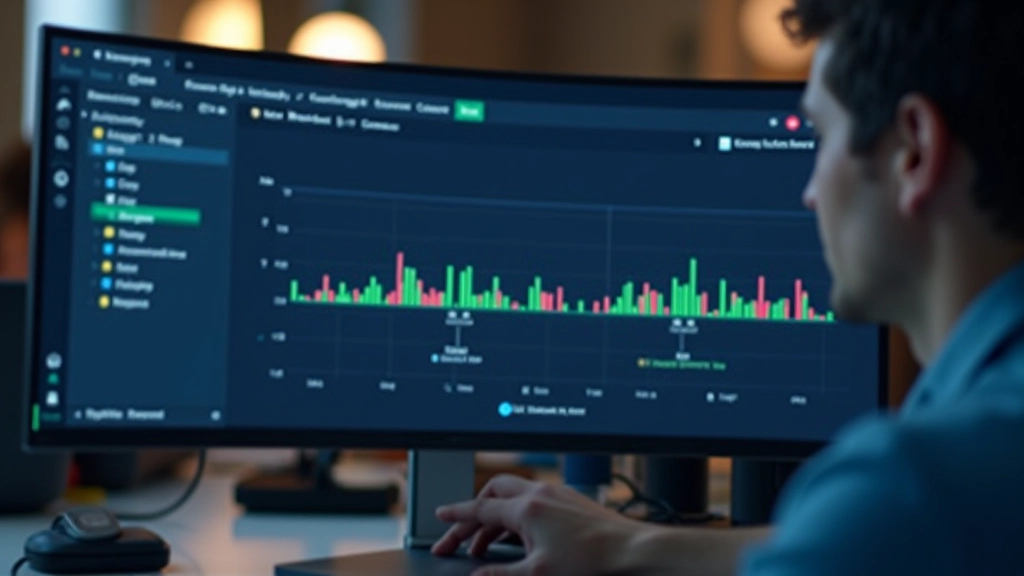
Every time you change a property that affects how something looks, the browser has to repaint it. Some properties trigger layout recalculations too, which is worse. This happens every frame during an animation.
Want to know what’s causing jank? Open DevTools, hit the Performance tab, and start recording. You’ll see paint events highlighted in green. If they’re taking 2-4ms per frame, you’re good. If they’re taking 10ms+, you’ve got a problem.
The fix? Use `transform` and `opacity` exclusively. They don’t trigger repaints at all — the GPU handles them on a separate layer. Everything else triggers repaints. Change `width`? Paint. Change `background-color`? Paint. Change `box-shadow`? Paint and layout recalculation.
“The cheapest animation is the one that doesn’t make the browser work at all. That’s why transform properties exist.”
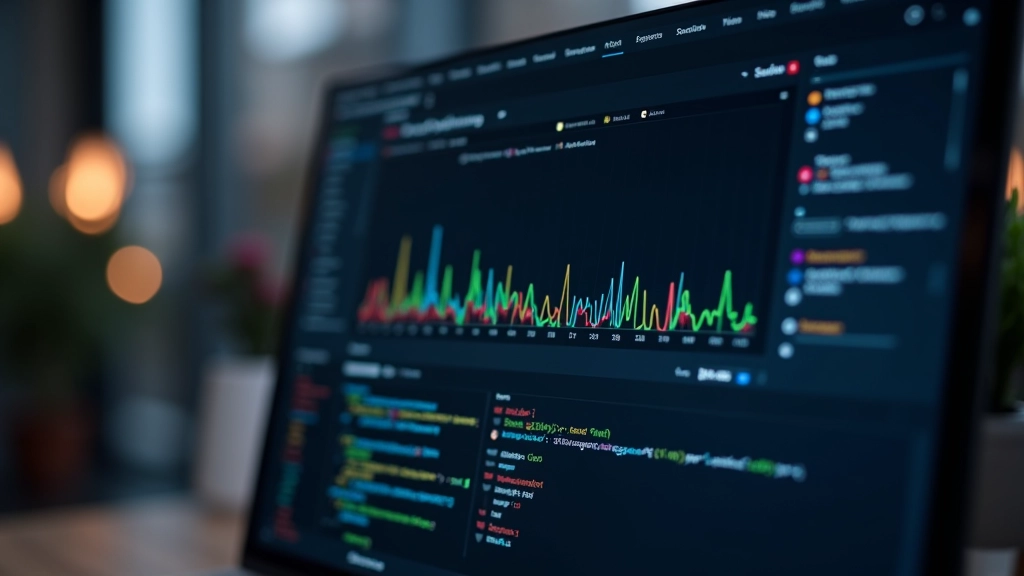
You can’t optimize what you don’t measure. Here’s what you should be tracking: FPS (frames per second), paint time, and composite time. These three metrics tell you everything.
Open DevTools Performance tab Record while animation runs for 3-5 seconds
Look for green “Paint” events in the timeline. Target: under 3ms per frame
DevTools Rendering tab enable FPS meter. Watch during animation
Before you ship any animation, run through this checklist. It’s quick and it catches 90% of performance problems.
No position, width, height, or shadow changes during animation
Too fast feels jarring, too slow feels sluggish. 300ms is the sweet spot for most interactions
Not linear. Something with acceleration/deceleration like cubic-bezier(0.4, 0, 0.2, 1)
Verified in DevTools Performance tab. Repaint isn’t the bottleneck
Test on actual mobile devices, not just your powerful desktop
Performance-first animation isn’t complicated — it’s about making deliberate choices. Use GPU-accelerated properties, respect timing constraints, and measure everything. That’s it. That’s the whole system.
The difference between a polished app and a janky one often comes down to how much thought went into the animations. You’re not just adding visual flair — you’re crafting the feel of the entire experience. And that feel matters more than you might think.
Start by measuring one animation on your site today. Record it in DevTools. Check the paint time. See if it hits 60fps. Then optimize from there. Small improvements compound.
Explore More ResourcesThis guide represents best practices for web animation performance as of 2026. Browser capabilities and performance characteristics evolve, so results may vary across different browsers and devices. The specific timing metrics, DevTools procedures, and CSS properties described reflect current standards but should be verified against your target browser versions and tested on actual devices before implementation in production environments.
Learn timing curves, easing functions, and duration principles that make animations feel intentional rather than random.
Read Article
Button states, loading indicators, and validation animations — how small movements communicate what’s happening.
Read Article
Pan, swipe, and touch interactions that respond instantly and feel connected to user input.
Read Article